Completely free
No paywalls for core features. Donations support development but are optional.
Free & open source · Windows
ShareX is a powerful screenshot and screen-recording utility trusted by creators, developers, and support teams. This page explains what it does, how people use it day to day, and how to fix common issues—so you can get work done faster.
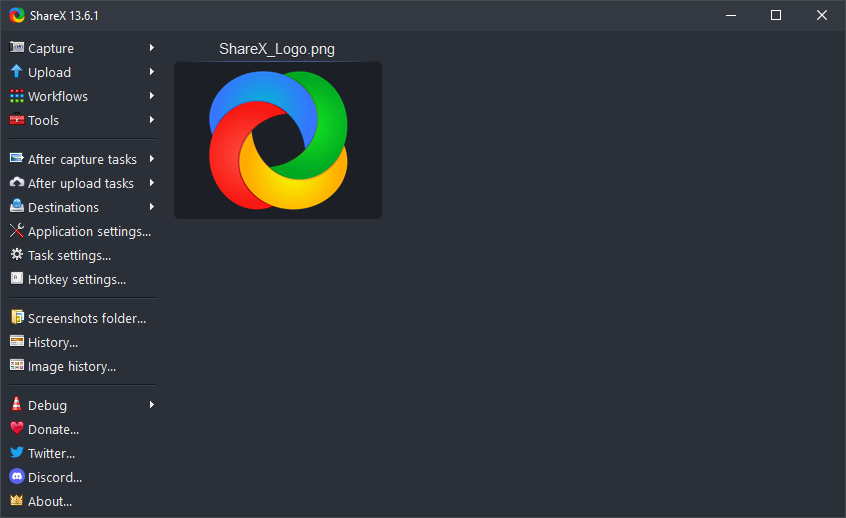
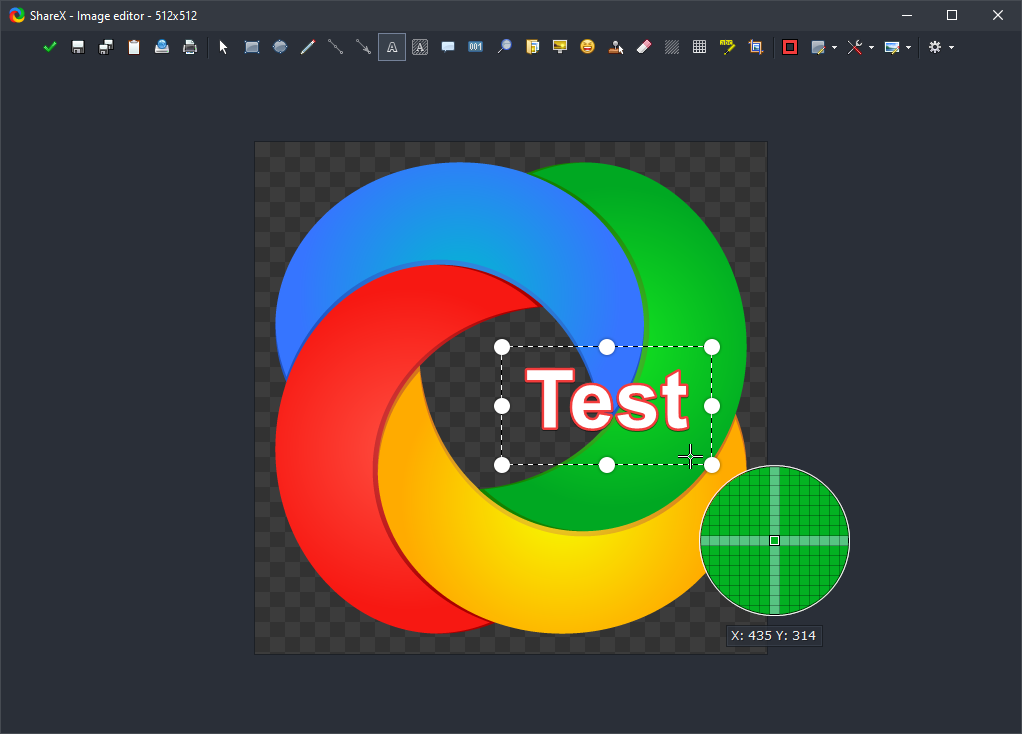
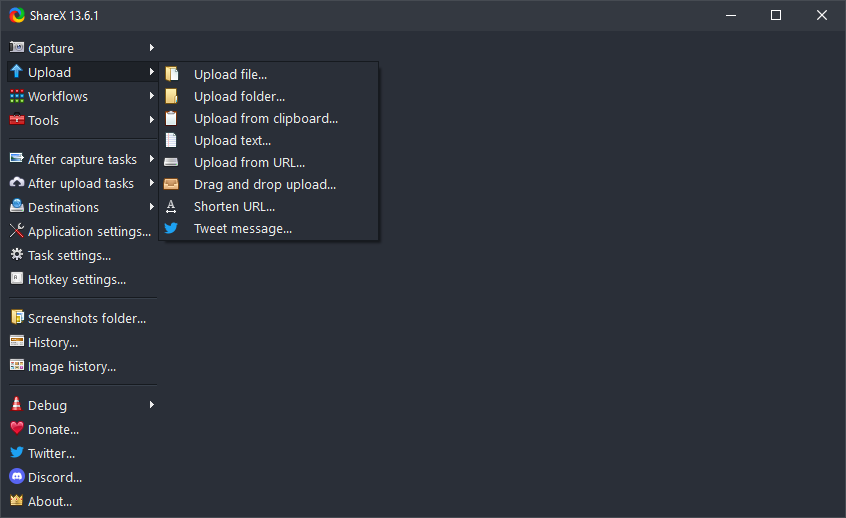
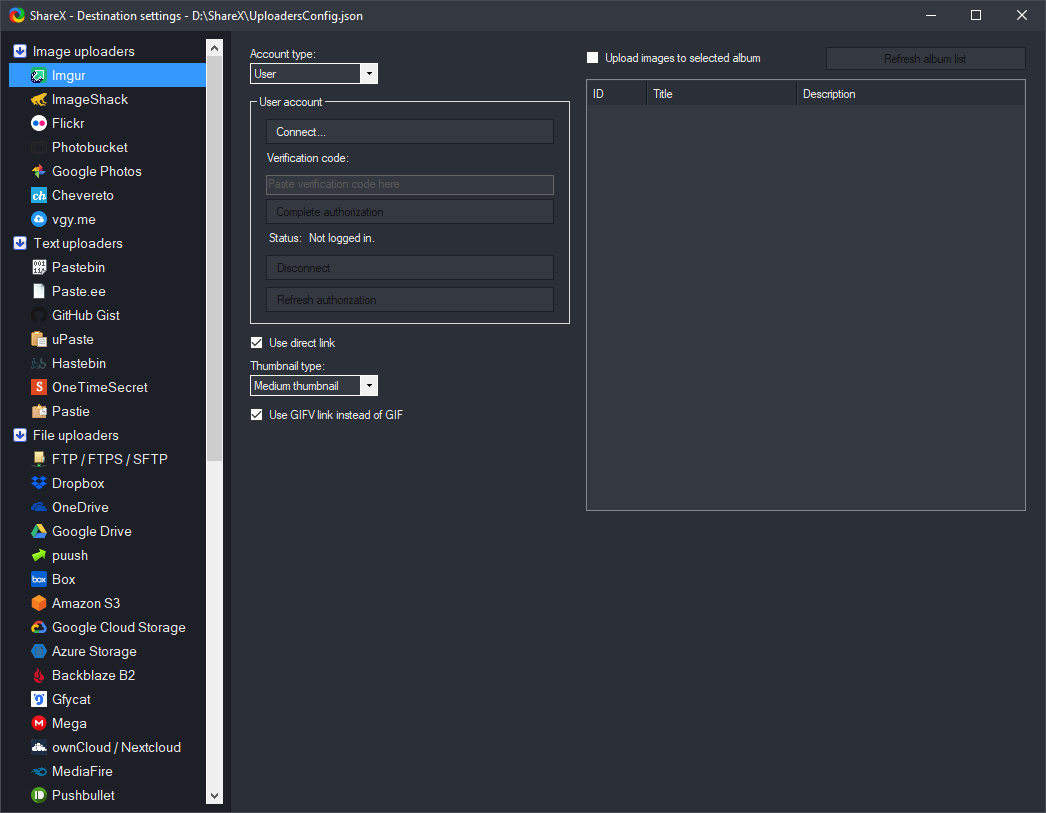
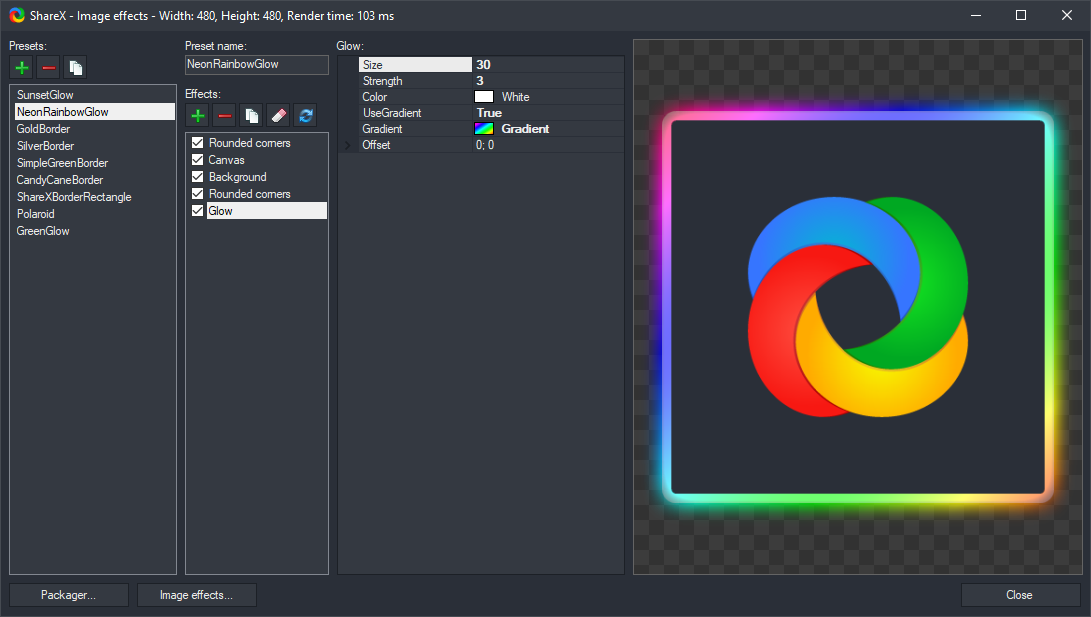
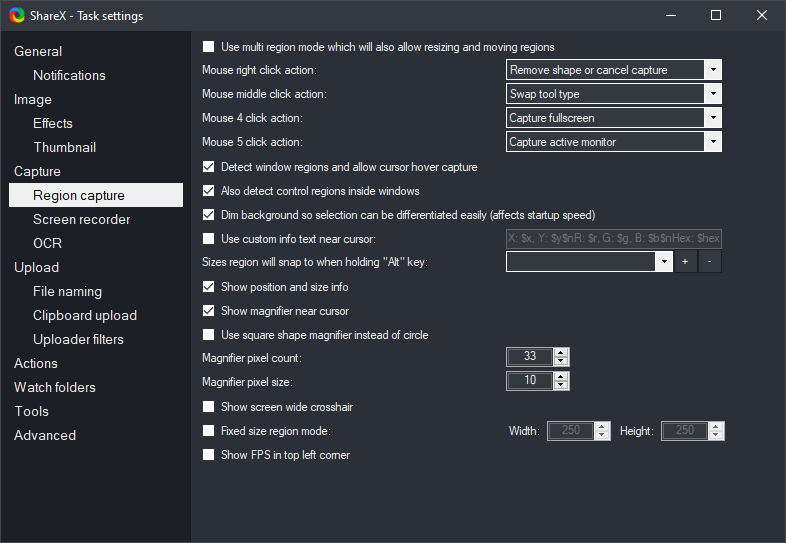
The ShareX project highlights these strengths—and they match what long-time users report in community discussions and issue threads.
No paywalls for core features. Donations support development but are optional.
Auditable code on GitHub—verify behavior or contribute.
Starts fast and stays out of the way.
Edge cases and QoL details add up over time.
Hotkeys & after-capture tasks for real pipelines.
A practical map of what ShareX can do. For more detail, explore the sections on this page.
Capture
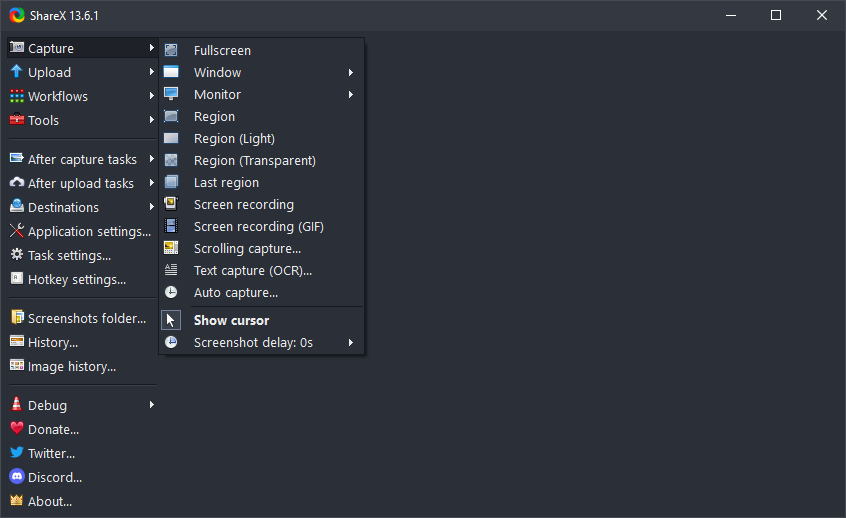
Fullscreen, active window, monitors, menus, regions (including transparent and “light” modes), last region repeat, scrolling capture, auto capture, and screen recording—including GIF.
Upload
Share files, folders, clipboard images, text, and URLs. After upload: shorten URL, copy link, QR, or custom actions.
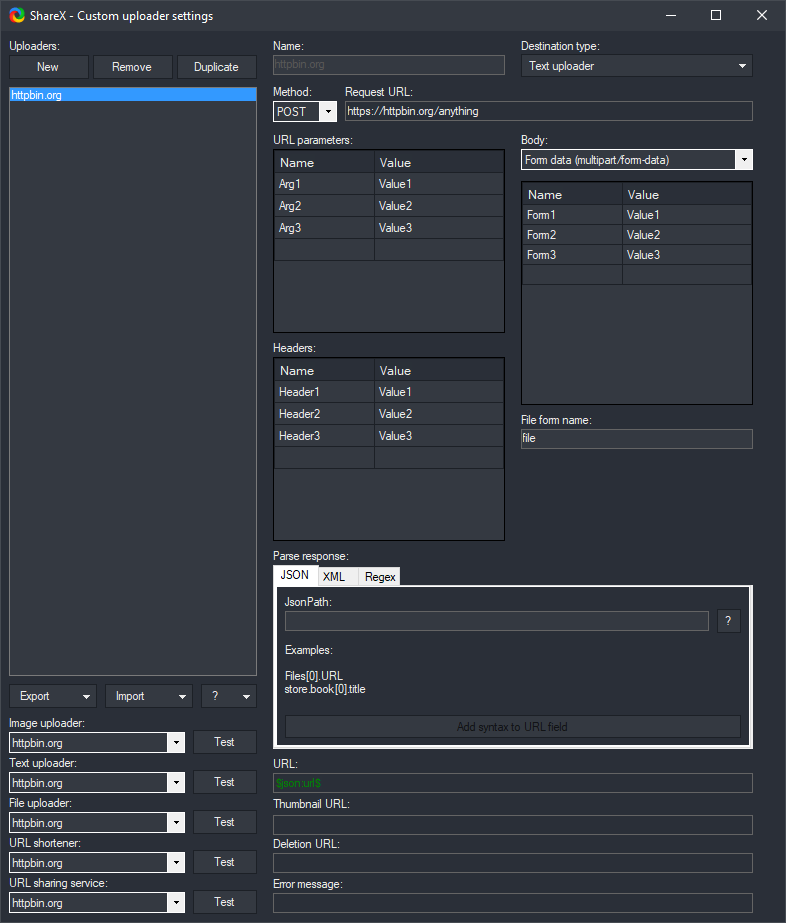
Configure custom uploaders, Amazon S3, Cloudflare R2, and more under Destinations in ShareX.
Productivity
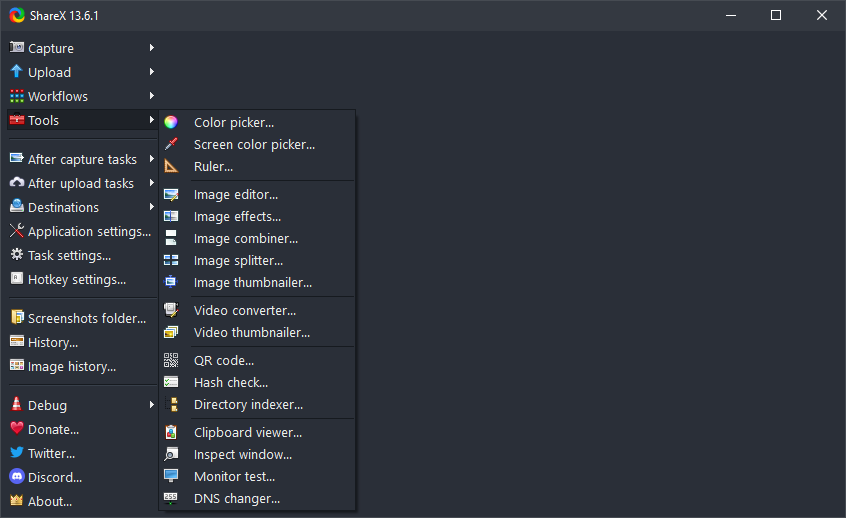
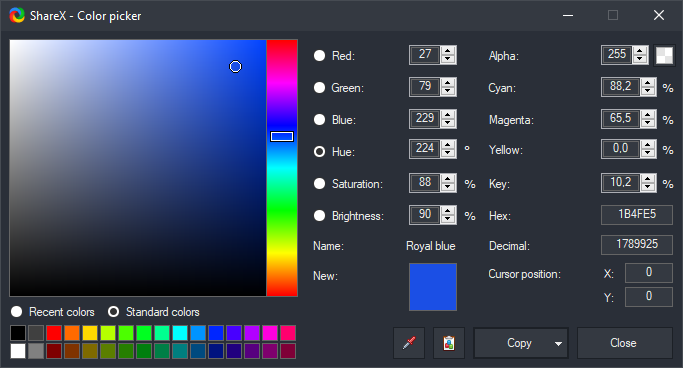
Color picker, ruler, image editor, effects, combiner/splitter, thumbnailers, video tools, OCR, QR, hash checker, clipboard viewer, and more—without leaving the app.
Choosing the right mode saves time. Common patterns from forums and documentation.
Region for tight crops in tickets; fullscreen when you need every pixel as arranged.
Slow the scroll or narrow the region if stitching drifts.
Keep clips short; trim externally for polished loops.
Blur, pixelate, steps, arrows—ideal for support screenshots.
Teams often pick one destination per environment—public host for casual sharing, private bucket for tickets.
| Scenario | Typical approach |
|---|---|
| Quick share | Image host; copy URL after capture. |
| Privacy-first | S3 / R2 / GCS or custom uploader. |
| Developers | POST to your API with auth headers. |
| Clipboard-only | Skip upload; copy path or image. |
Utilities that keep you in flow—paired with real UI from the app.
Typical setups—not guaranteed for every machine, but strong starting points.
Region → blur → upload → paste link into tickets.
Short GIFs in GitHub issues beat long repro paragraphs.
One image for long pages—mind privacy and ToS.
When PDF export is unavailable—respect copyright.
Quick checks first; then narrow down with logs and community channels.
Use the download options below and pick the build that matches your PC. Release numbers change over time.
Quick definitions for ShareX-related terms you will see in menus, forums, and guides.
Not a vendor scorecard—just practical angles people care about when picking a capture stack on Windows.
| Need | Typical approach in ShareX | Watch-outs |
|---|---|---|
| Fast ticket screenshots | Region capture → blur → copy link or file path | Confirm company policy on cloud uploads. |
| UI documentation | Scrolling capture + numbered steps in the editor | Very long pages may need multiple passes. |
| Short motion demos | GIF recorder with modest duration | Large GIFs are slow in email—prefer link hosting. |
| Private archives | Save to disk only; disable upload tasks | Encrypt disks if screenshots contain secrets. |
| Color sampling | Screen color picker from Tools | HDR displays can shift perceived values—verify in design app. |
A practical order of operations for a clean setup before you rely on ShareX in production.
Lossless, great for UI and diagrams. Larger files than JPEG for photos.
Smaller for photographic content; unsuitable when you need pixel-perfect text.
Short motion clips and simple animations—mind palette limits and file size.
Modern balance of size and quality—support varies in older viewers.
Myth: “One hotkey should do everything.”
Reality: Different jobs need different workflows—fullscreen recording is not interchangeable with a tiny region snip.
Myth: “Scrolling capture works on any page.”
Reality: Infinite scroll, sticky headers, and canvas-based sites can confuse stitching—adjust region or capture in chunks.
Myth: “Upload failures are always ShareX bugs.”
Reality: Tokens expire, hosts rate-limit, and corporate proxies intercept HTTPS—always verify network and credentials.
Expand any row for a concise answer—topics are independent of each other.
Windows display scaling, HDR, and night-light filters change how colors are interpreted. Capture from the same color profile context you use for design work, and avoid mixing HDR screenshots with SDR documentation without noting the difference.
Auto capture supports timed intervals—ideal for monitoring slow UI changes. Pair with a dedicated output folder and periodic cleanup so disk usage stays predictable.
Use a pattern that includes date, ticket ID, or a short slug. Avoid spaces in automated pipelines; underscores or hyphens reduce surprises in scripts.
Per-monitor DPI means captures may have mixed pixel densities in one session. Prefer capturing per monitor rather than stitching mismatched regions unless you normalize later.
Treat recordings like live broadcasts—anything visible on screen can be captured. Use policy-approved tooling and avoid recording when classified overlays appear.
Shorten duration, lower frame area, reduce colors, and prefer hosting a link instead of attaching multi-megabyte files.
Heavy compression or downscaling can damage modules. Test with PNG, ensure margin around the code, and verify the scanner app is not applying its own filters.
Add captions or alt text in your destination platform; ShareX captures pixels, not semantic structure—supplement with written context for screen reader users consuming your docs.
Pin reference shots beside Figma, capture at 1× when documenting components, and keep a consistent naming scheme per project so handoffs stay searchable.
Pair GIFs with issue templates, capture console logs in region mode, and avoid leaking tokens—blur aggressively before any upload task runs.
Standardize a three-step visual: environment, repro, expected vs actual. Store originals in a controlled folder when regulations require retention.
ShareX is versatile, but honesty saves time: professional video editing suites handle timelines better; dedicated OCR suites may beat quick extractions for bulk document conversion; enterprise DLP tools enforce policy in ways a capture app cannot replace.
Document your own defaults in a short internal note: hotkeys, destination, naming pattern, and what to do when uploads fail. That single habit turns ShareX from a utility into a dependable part of your workflow—without relying on memory when you are under pressure.
This extended section is independent reference material for readers who want depth beyond the primary guide. It does not replace in-app help or release notes for the ShareX application itself.
ShareX shines when the same capture story happens daily. Think in pipelines: trigger → output → destination → audit trail.
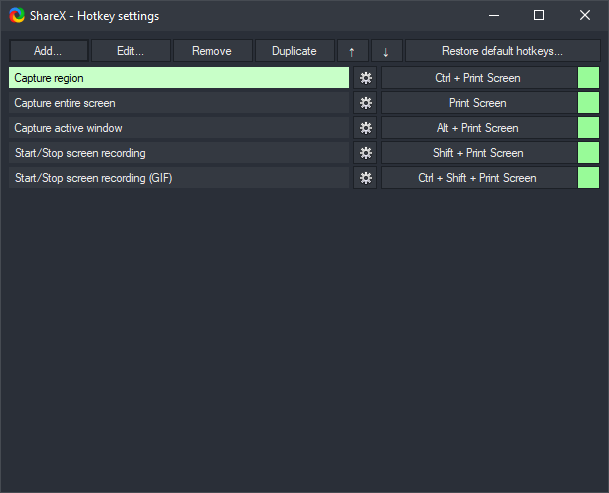
Use fixed hotkeys per workflow, not ad-hoc clicks. Predictable inputs survive busy weeks and new hires.
One folder pattern per project, one naming rule per team. Chaos in filenames becomes chaos in tickets.
| Element | Use when | Avoid when |
|---|---|---|
| Arrows | Pointing to a single control | The UI is already obvious |
| Numbered steps | Sequences longer than two actions | Order does not matter |
| Blur / pixelate | PII or internal IDs appear | You still need the text readable for the fix |
| Crop | Noise around the relevant widget | Context (URL bar, app title) is required for diagnosis |
Hover states, animations, reordering lists, drag-and-drop, anything where time order matters.
Error text, configuration panels, pixel-perfect layout bugs, anything reviewers will zoom into.
Screenshots age badly: paths change, secrets expire, disk fills. Pair capture folders with a simple policy.
Exploration: default hotkeys, one destination, occasional wrong-window captures.
Stabilization: named workflows, trusted upload path, fewer retakes.
Muscle memory: batch habits, team conventions, predictable artifact quality.
Live calls benefit from quick region snips pasted into chat—optimize for speed and clarity, not polish.
Tickets and email benefit from numbered steps, cropped context, and filenames that search engines and humans can find later.
More situations that confuse first-time capture setups—each answer stands alone.
TLS interception and split tunneling alter which routes reach public hosts. Test the same upload on and off VPN; ask network admins for allowlists if you must use a specific host.
Power settings can pause the foreground app mid-scroll. Plug in AC, extend sleep timers temporarily, or capture in shorter vertical chunks.
RDP compresses video. Capture on the session host when possible, or increase client display quality settings—still expect softer edges than local glass.
Guest tools change resolution and scaling. Document whether the shot is from host or guest OS to avoid “wrong resolution” debates.
OS throttling can drop capture frame rates. For demos that must look smooth, plug in and switch to high performance plan briefly.
Some suites scan every write to output folders, adding latency. A controlled exclusion for your capture directory can help—only with security review.
Automation that assumes ASCII paths breaks on localized usernames. Prefer output roots without exotic characters when wiring scripts.
Default devices change when headsets connect. Verify system default input/output before narrating a walkthrough.
Paste this outline into your internal wiki when documenting a ShareX-based procedure.
Title: [Action] using ShareX on Windows
Audience: [role]
Prerequisites: OS build, app version, permissions
Steps:
  1. Trigger: [hotkey / menu path]
  2. Capture: [region / scroll / record]
  3. Edit: [blur / crop / steps]
  4. Output: [path pattern / upload off]
Verify: [expected file name / checksum optional]
Rollback: [how to undo or delete artifacts]
When your OS is English but discussions happen in another language, align on these terms so handoffs stay unambiguous.